How to Generate a Languages Examination
A Complete Step-by-Step Guide for Teachers
English, Kiswahili, Fasihi, Literature, French and Other Supported Languages
Learn how to select curriculum content, organize examination areas, configure questions, review your draft and generate Question Papers and Marking Schemes.
Getting Started
The UBright Minds Academy Languages Exam Generator helps teachers prepare customized language examinations based on the content taught and the examination areas required.
This guide uses Grade 10 English as the practical example.
The general process also applies to other supported language subjects, although their themes, learning areas, question types and assessment settings may differ.
Follow the steps below to prepare your examination.
Select Your Grade, Themes and Domains
Begin by identifying the curriculum content your learners have covered.
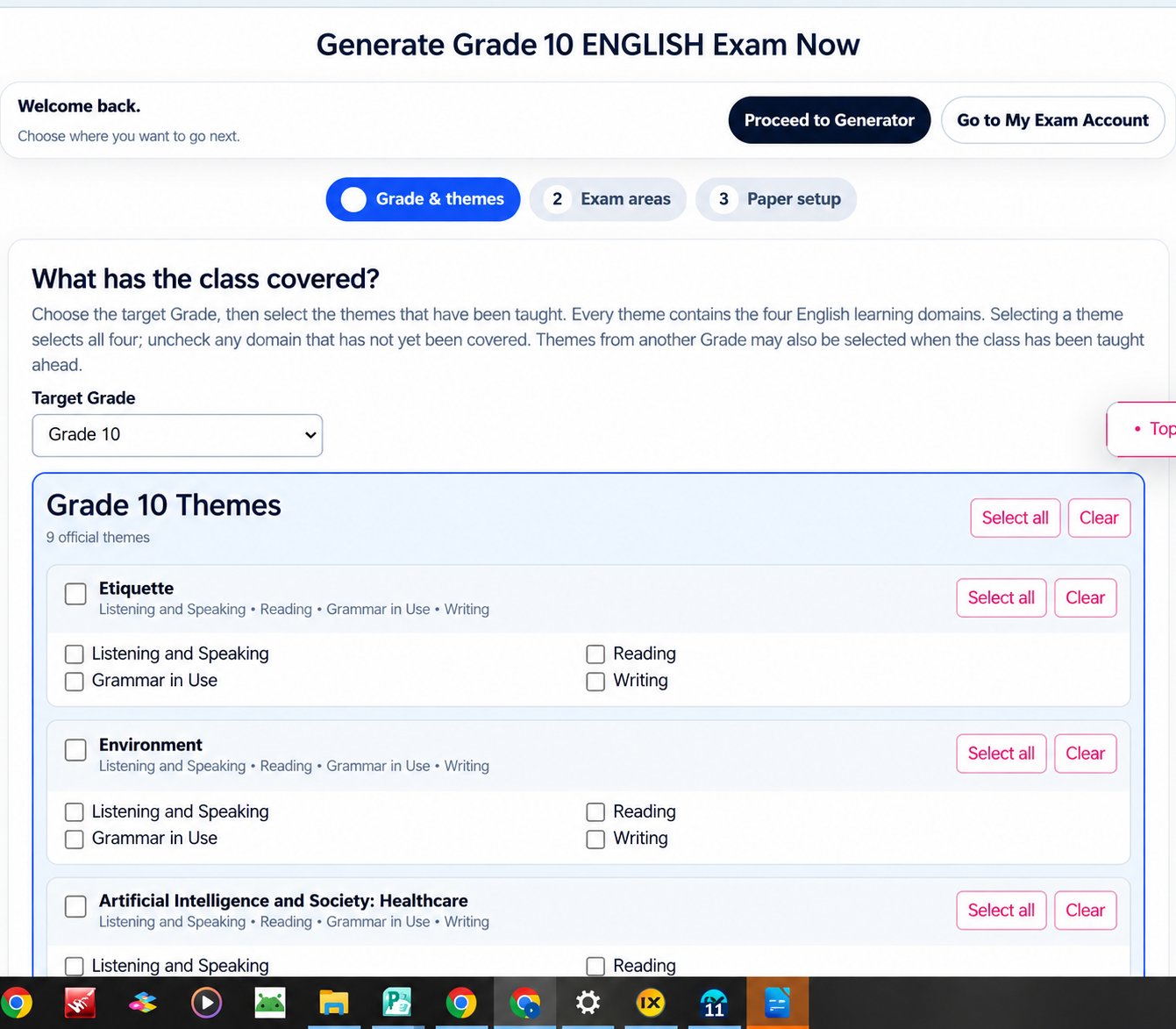
Open the Languages Exam Generator and select your language subject.
The English generator begins with Grade & themes.
Select the Target Grade
- Locate the Target Grade dropdown.
- Select the grade for which you want to prepare the examination.
- Review the themes displayed for that grade.
Select the Themes Covered
Under What has the class covered?, tick the themes that learners have studied.
In the Grade 10 English example, the themes include:
- Etiquette
- Environment
- Artificial Intelligence and Society: Healthcare
Other themes are available further down the list.
Select Learning Domains
Each English theme includes four learning domains:
- Listening and Speaking
- Reading
- Grammar in Use
- Writing
Selecting a theme selects all four domains automatically.
You can then untick any domain that has not yet been covered.
Teacher’s Tip: Select only the themes and learning domains that learners have covered. Where appropriate, the generator also allows themes from another grade to be selected.
Choose and Arrange Examination Areas
Decide which examination areas should appear in the paper and the order in which they will be presented.
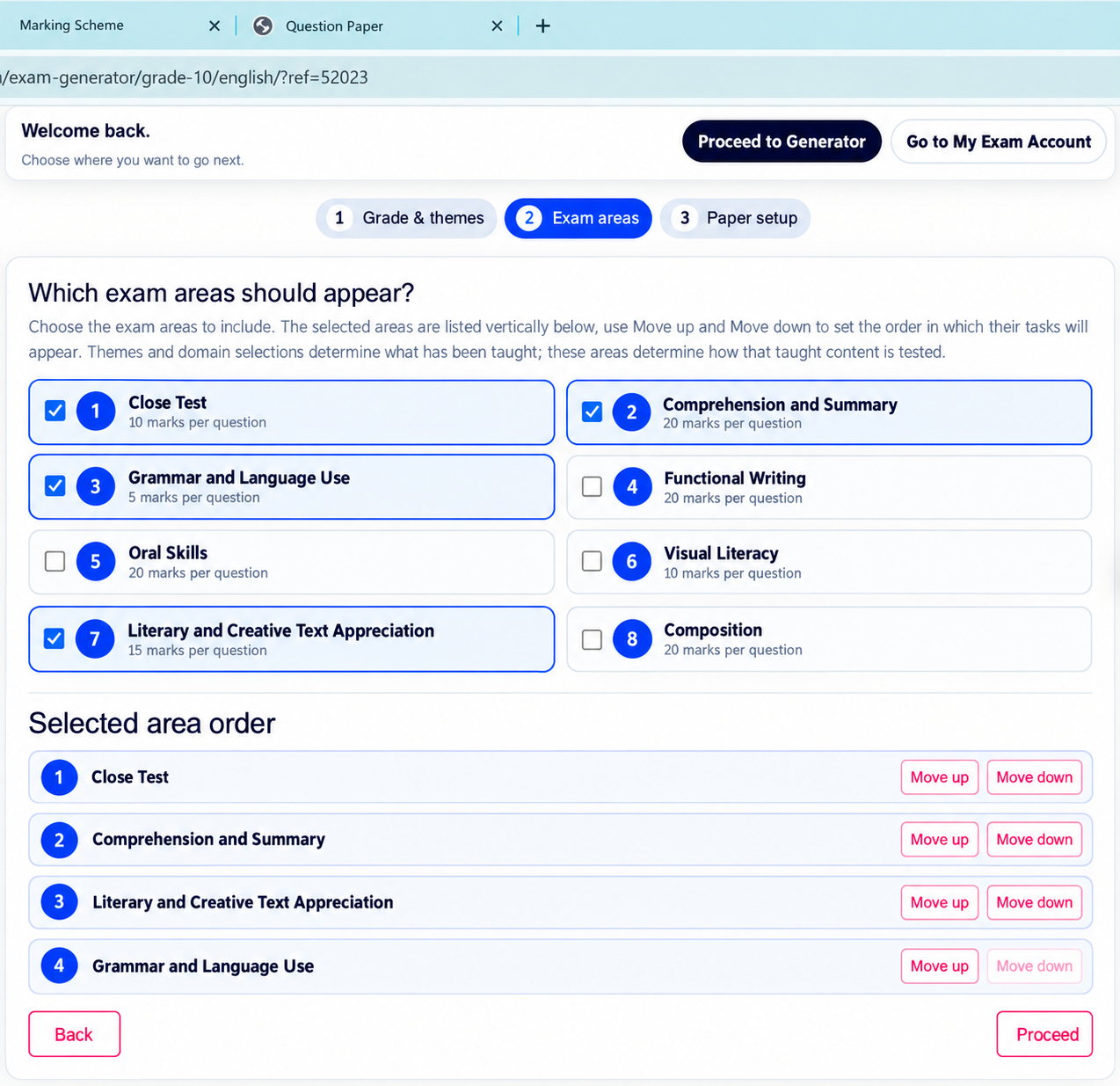
Proceed to the Exam areas stage.
The English generator displays several examination areas.
| Examination Area | Marks per Question |
|---|---|
| Cloze Test | 10 marks |
| Comprehension and Summary | 20 marks |
| Grammar and Language Use | custom marks |
| Functional Writing | 20 marks |
| Oral Skills | 20 marks |
| Visual Literacy | 10 marks |
| Literary and Creative Text Appreciation | 15 marks |
| Composition | 20 marks |
Select the Examination Areas
- Tick the checkbox beside each area you want included.
- Leave unwanted areas unchecked.
- Review the selected areas in the Selected area order section.
Arrange the Examination Areas
Use the Move up and Move down buttons to change the order in which examination tasks will appear.
For example, you may arrange the paper as follows:
- Cloze Test
- Comprehension and Summary
- Literary and Creative Text Appreciation
- Grammar and Language Use
Important: Themes and learning domains determine the content taught, while examination areas determine how that content will be assessed.
Once satisfied, click Proceed.
Enter Paper Details and Question Counts
Provide your examination details and configure the questions for each selected examination area.
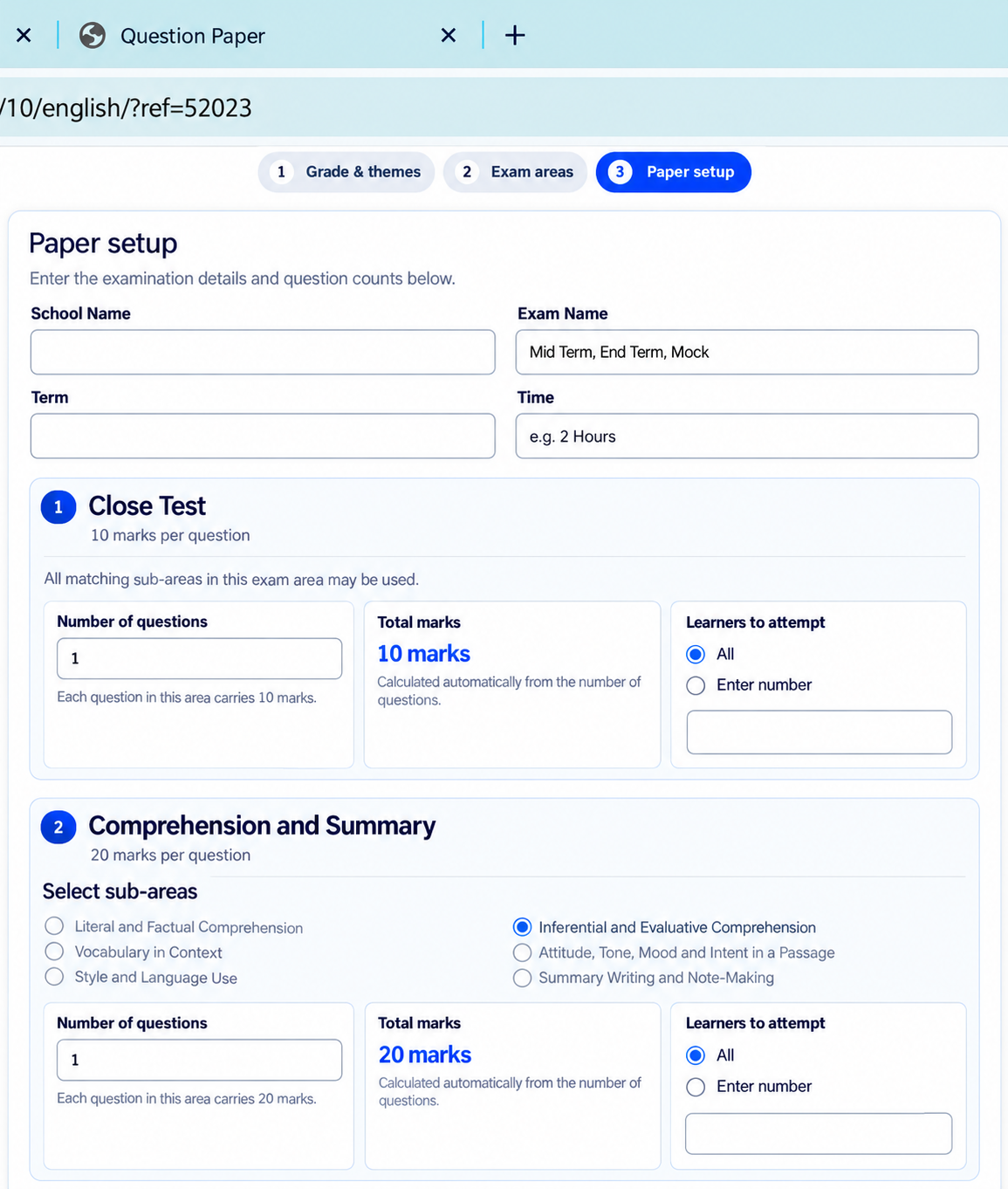
The third stage is Paper setup.
Enter Examination Details
- School Name: Enter the name of your school.
- Exam Name: Enter the examination title, such as End Term or Mock.
- Term: Specify the academic term.
- Time: Enter the examination duration, such as 2 Hours.
Configure Each Examination Area
Each selected area has its own configuration panel.
Depending on the area, you can specify:
- The number of questions to include.
- The sub-areas to assess.
- Whether learners should attempt all questions or a specified number.
Example: Cloze Test
In the example shown, one Cloze Test question carries 10 marks.
Entering one question produces a total of 10 marks for that area.
Example: Comprehension and Summary
One question carries 20 marks.
The available sub-areas include different comprehension and summary skills.
Select the appropriate sub-area and enter the required number of questions.
Automatic Calculation: The generator calculates the total marks from the number of questions and the marks allocated per question.
Configure Remaining Tasks and Difficulty
Complete the settings for the remaining examination areas and choose the desired difficulty mix.
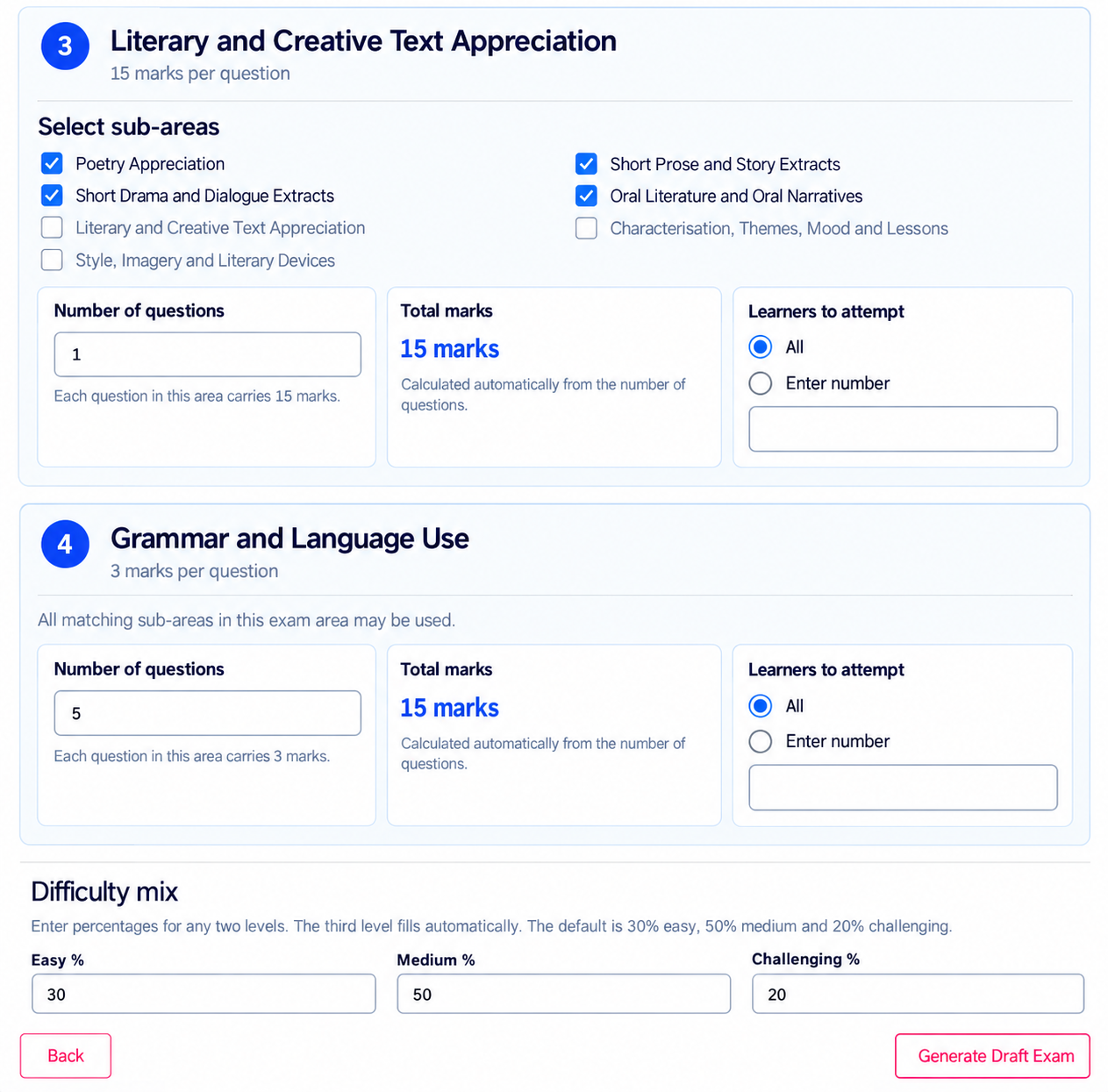
Literary and Creative Text Appreciation
This examination area allows teachers to select the literary sub-areas they want assessed.
The available options shown include:
- Poetry Appreciation
- Short Drama and Dialogue Extracts
- Short Prose and Story Extracts
- Oral Literature and Oral Narratives
- Style, Imagery and Literary Devices
- Characterisation, Themes, Mood and Lessons
Select the required sub-areas and enter the number of questions.
In the example, one literary appreciation question carries 15 marks.
Grammar and Language Use
The screenshot shows five Grammar and Language Use questions.
Each carries three marks, giving a total of 15 marks.
Learners to Attempt
For each examination area, select whether learners should attempt:
- All: All questions in the area.
- Enter number: A specified number of questions.
Set the Difficulty Mix
The English generator provides three difficulty levels:
- Easy
- Medium
- Challenging
The default difficulty mix shown is:
| Difficulty | Percentage |
|---|---|
| Easy | 30% |
| Medium | 50% |
| Challenging | 20% |
You can enter percentages for any two levels, and the generator automatically calculates the third.
Next: When you have completed the paper setup, click Generate Draft Exam.
Review and Customize the Draft Examination
Review the generated examination, edit questions and arrange the tasks in your preferred order.
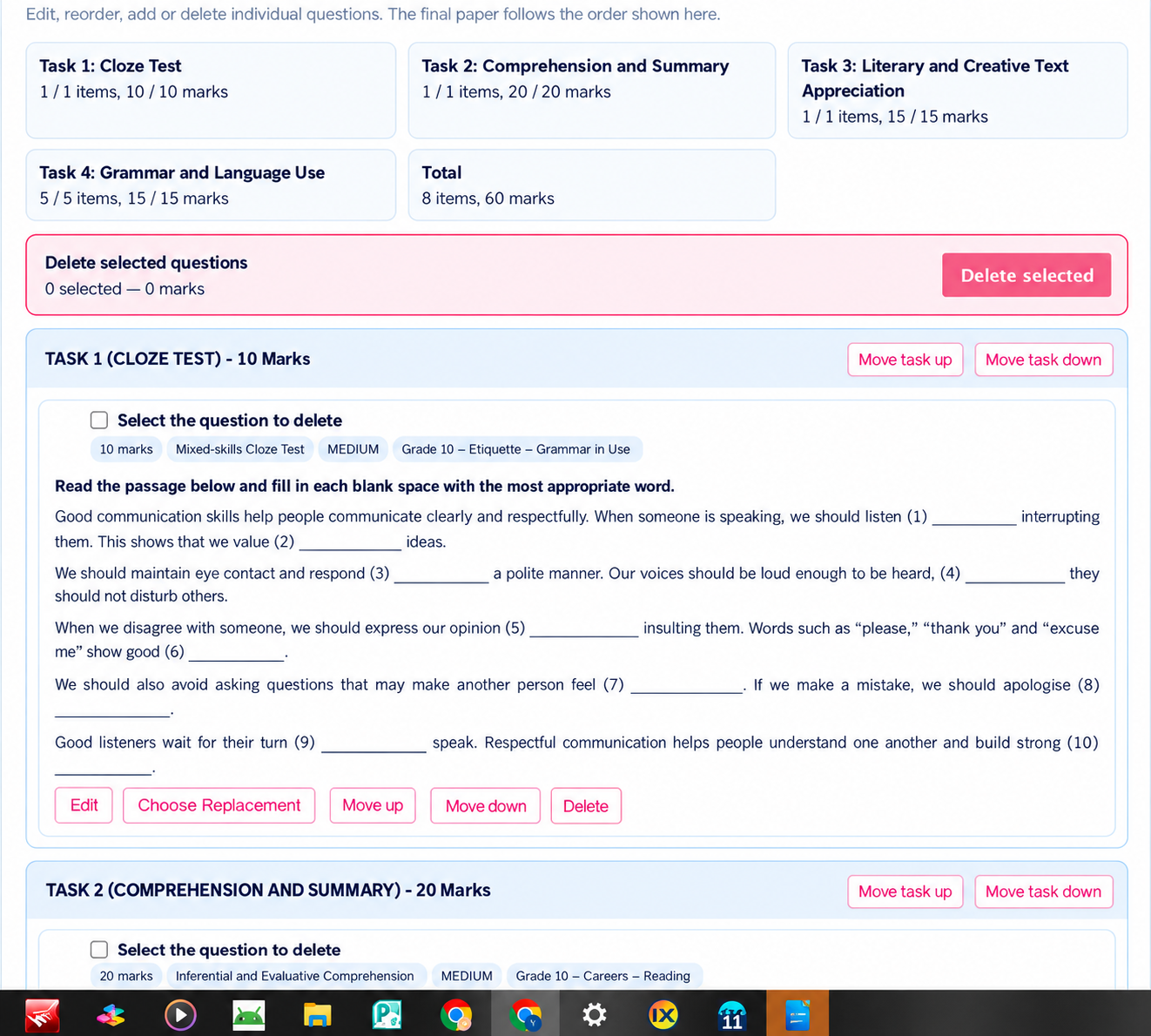
After generating the draft, the system displays the selected examination tasks and questions.
Review the Examination Summary
The example shown contains four examination tasks:
| Task | Marks |
|---|---|
| Task 1: Cloze Test | 10 |
| Task 2: Comprehension and Summary | 20 |
| Task 3: Literary and Creative Text Appreciation | 15 |
| Task 4: Grammar and Language Use | 15 |
| Total | 60 marks |
Customize Individual Questions
The draft editor provides several controls.
| Control | Function |
|---|---|
| Edit | Modify the selected question. |
| Choose Replacement | Replace a question with another. |
| Move up | Move a question earlier. |
| Move down | Move a question later. |
| Delete | Remove an individual question. |
| Delete selected | Remove selected questions. |
| Move task up | Move an examination task earlier. |
| Move task down | Move an examination task later. |
What Should You Check?
- The questions match the content taught.
- Each examination area has the intended number of questions.
- The question wording is suitable for the learners.
- The marks are correctly distributed.
- The examination tasks appear in the desired order.
Important: The final examination follows the order displayed in the draft editor.
Once satisfied with the draft, proceed to generate the final examination files.
Unlock Your Examination Pack
Choose a payment method to unlock the completed Question Paper and Marking Scheme.
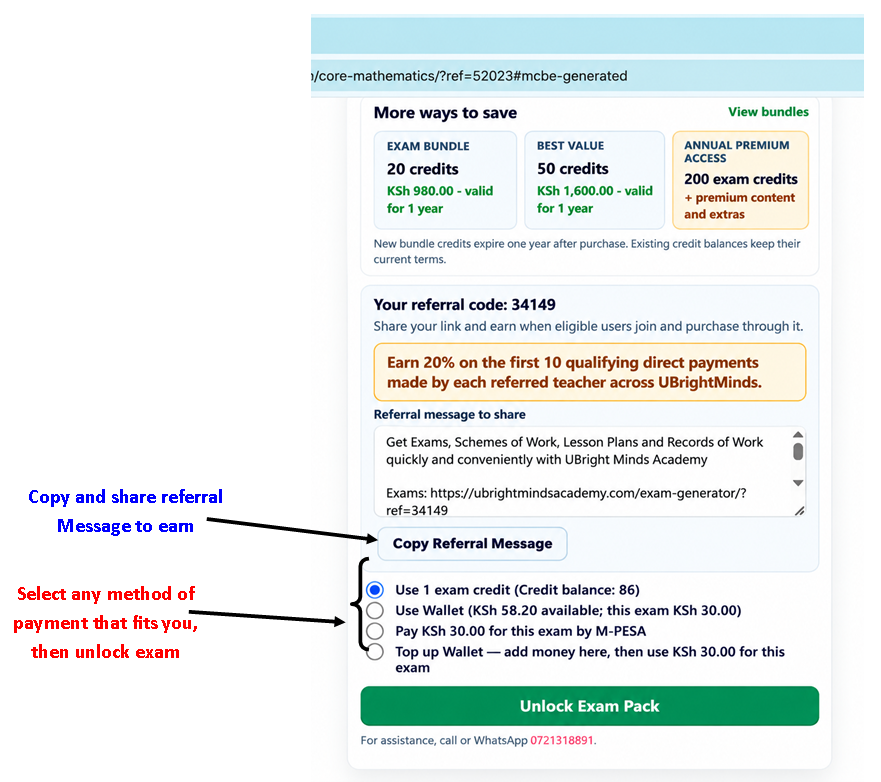
The generator provides different options for unlocking your examination pack.
The payment page may also show credit bundles, premium offers and referral rewards.
Select your preferred payment option and click Unlock Exam Pack.
Note: Prices, account balances and promotional offers may change. Always check the amount displayed on your account.
Download Your Completed Examination
Once the examination pack is unlocked, your final Question Paper and Marking Scheme are ready.
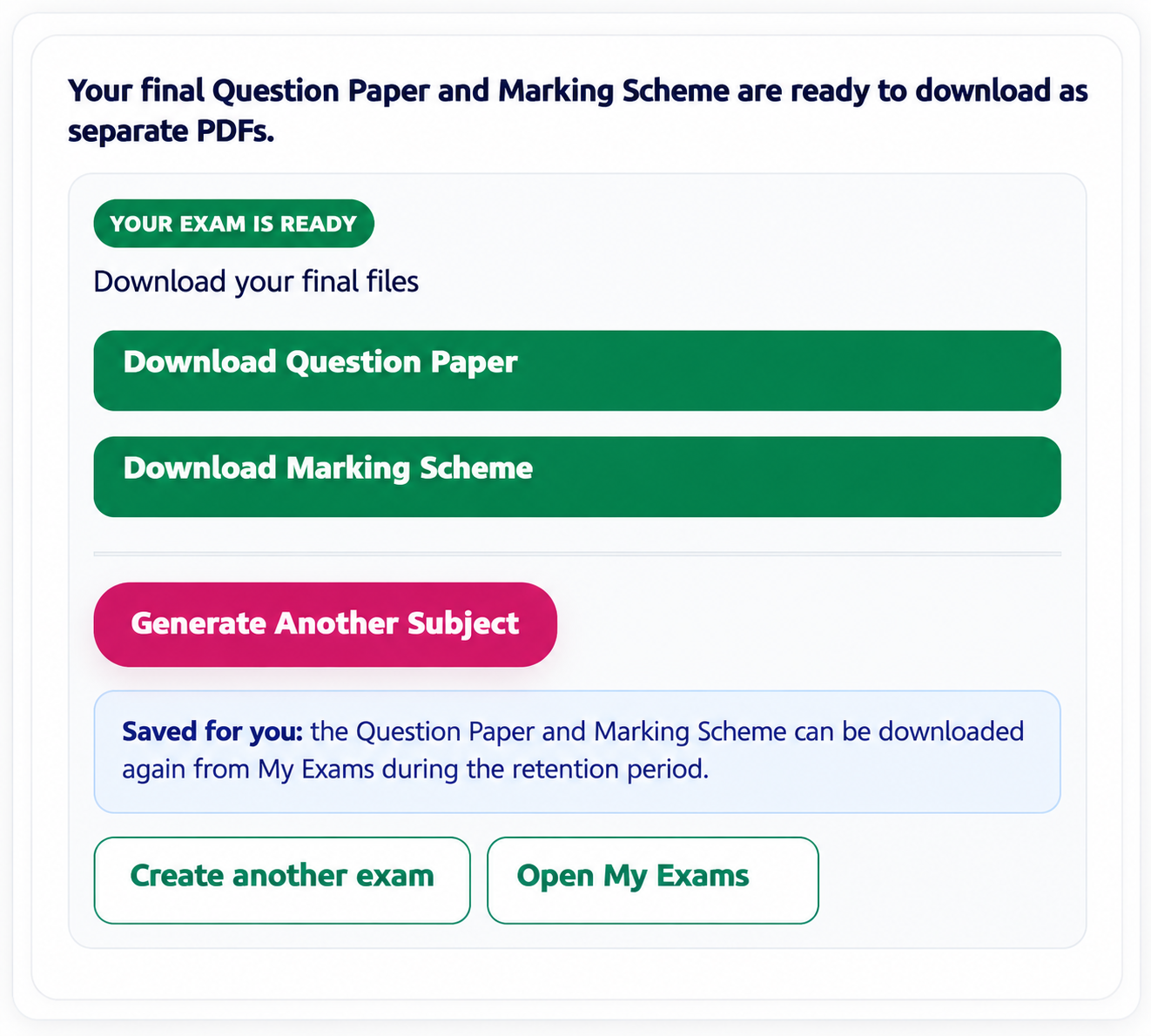
After successfully unlocking the examination, the system displays a confirmation message.
Download Question Paper
Click Download Question Paper to obtain the examination document for learners.
Download Marking Scheme
Click Download Marking Scheme to obtain the corresponding marking guide for teachers.
Additional Options
- Generate Another Subject: Prepare an examination for another subject.
- Create another exam: Begin a new examination.
- Open My Exams: Access examinations saved to your account.
Saved for You: The Question Paper and Marking Scheme can be accessed again from My Exams during the applicable retention period.
View a Sample English Examination
Below is an example of the examination documents produced by the Languages Exam Generator.
This demonstration uses Grade 10 English — Term 3, 2026 End Term.
Select a document to view it directly on this page.
Sample English Question Paper
Grade 10 English — Term 3, 2026 End Term
Sample English Marking Scheme
Grade 10 English — Term 3, 2026 End Term
Viewing Information: These sample documents are displayed directly on this page. PDF viewing controls may differ depending on the browser or device.
Languages Exam Generation at a Glance
The complete process consists of seven steps.
Ready to Begin? Open the UBright Minds Academy Languages Exam Generator, select your language subject and follow these steps to prepare your next examination.