How to Generate an Examination
A Complete Step-by-Step Guide for Teachers
Create, customize and generate professional Question Papers and Marking Schemes using the UBright Minds Academy Exam Generator.
Getting Started
The UBright Minds Academy Exam Generator helps teachers prepare customized examinations by selecting curriculum content, setting examination marks, reviewing questions and generating ready-to-use examination documents.
This guide demonstrates the process using Grade 10 Core Mathematics. Follow the six steps below to generate your examination.
Enter Your Examination Details
Begin by selecting your subject and providing the information that will appear on your examination paper.
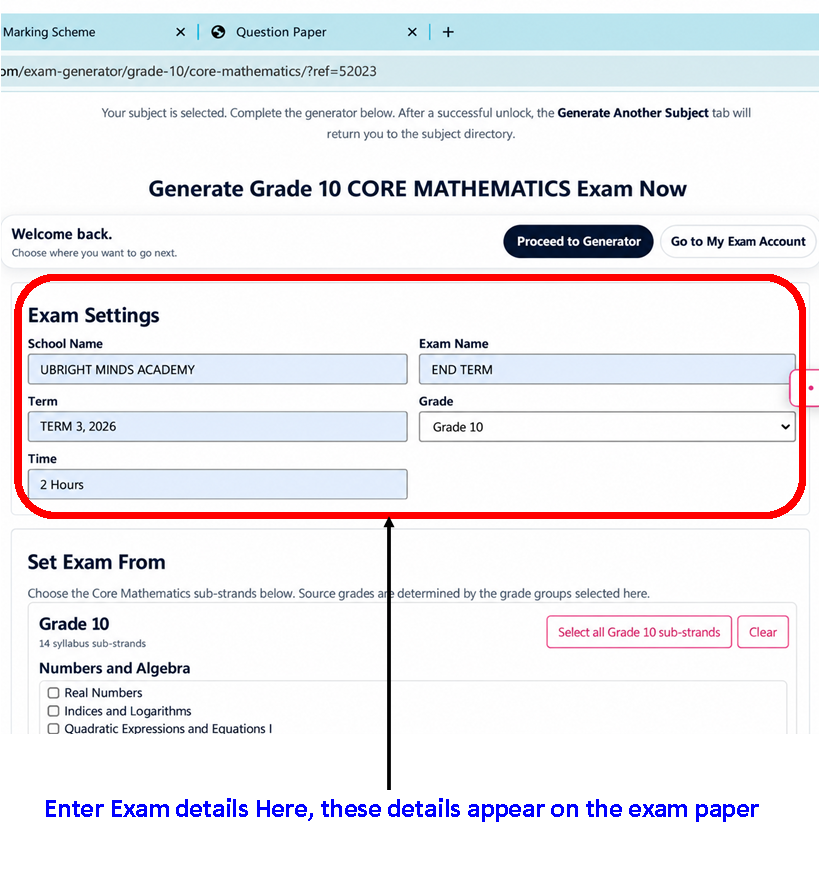
After opening the Exam Generator and selecting your subject, locate the Exam Settings section.
- School Name: Enter the name of your school or institution.
- Exam Name: Enter the examination title, such as End Term or Mid Term.
- Term: Specify the academic term and year.
- Grade: Confirm the grade being examined.
- Time: Enter the examination duration, for example, 2 Hours.
Important: Check your examination details carefully. These details will appear on the generated examination paper.
Select Grades and Sub-Strands
Choose the curriculum content that you want included in your examination.
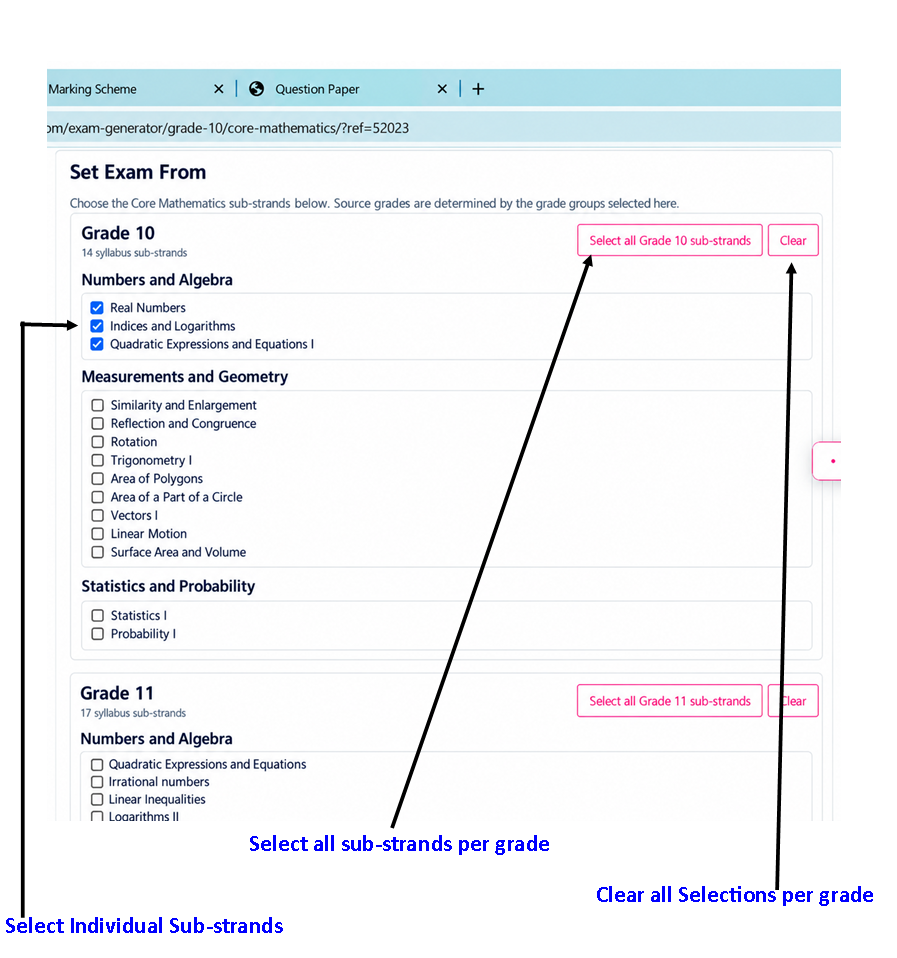
Under Set Exam From, the available content is organized according to grade and sub-strand.
- Locate the grade you want to examine.
- Tick the checkbox beside each sub-strand you want included.
- Select several sub-strands to assess a wider range of content.
- Use the select-all option to include all available sub-strands for a grade.
- Use the clear option to remove the selections for a grade.
Where appropriate, you may select sub-strands from more than one grade, depending on the available generator settings.
Teacher’s Tip: Select content that has already been covered in class to ensure the examination matches your teaching progress.
Set Examination Marks and Difficulty
Determine how your examination will be structured and the difficulty levels of the questions.
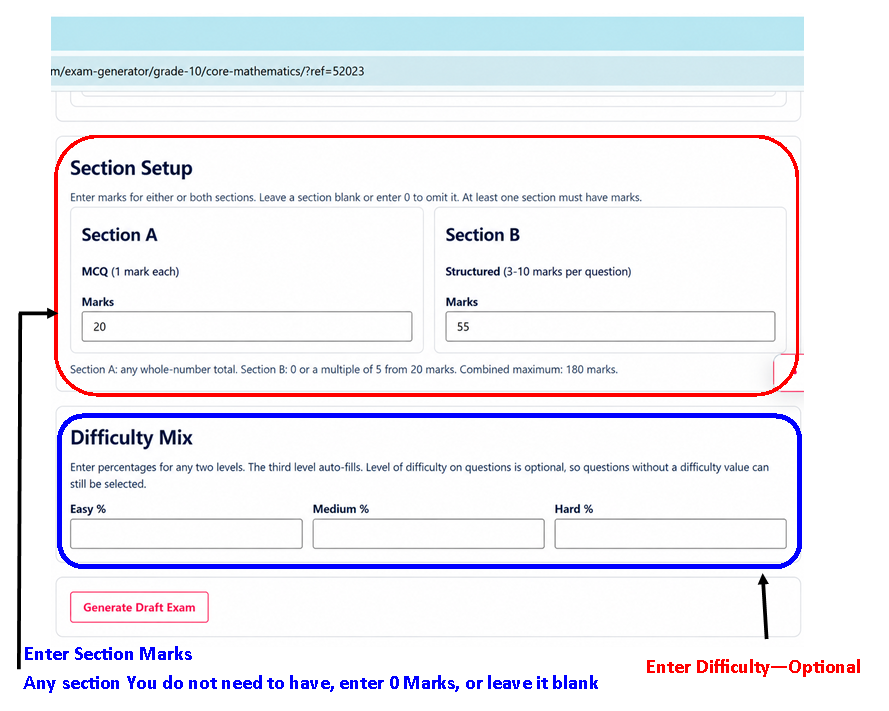
Section A — Multiple-Choice Questions
Enter the total marks you want allocated to multiple-choice questions.
For example, entering 20 marks sets a target of 20 marks for Section A.
Section B — Structured Questions
Enter the total marks required for structured questions.
For example, you may allocate 55 marks to Section B.
Difficulty Mix
The generator provides three difficulty levels:
- Easy
- Medium
- Hard
You may enter the preferred percentages for the examination difficulty mix. The generator can calculate the remaining percentage when two values are entered.
The difficulty fields may also be left blank if you do not wish to specify a mix.
Next: Once your settings are complete, click Generate Draft Exam.
Review and Customize Your Draft
Review the generated questions and make any necessary changes before producing the final examination.
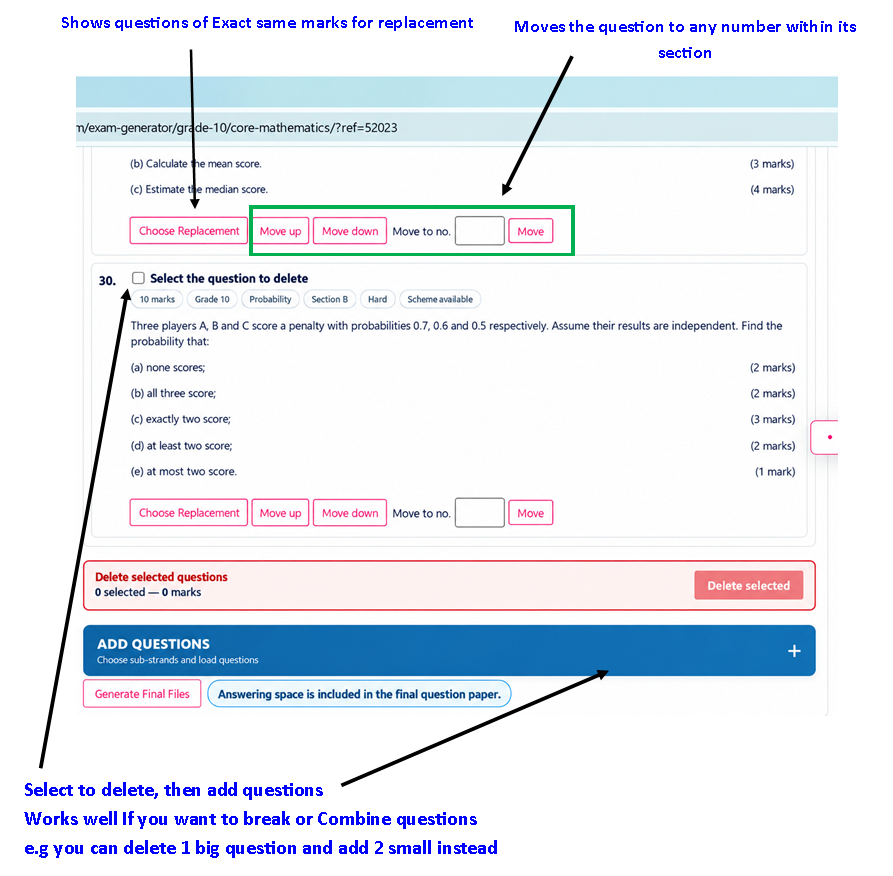
The draft examination displays the selected questions together with relevant information such as marks, grade, sub-strand, section, difficulty and marking scheme availability.
You can customize the examination using the following controls:
| Control | Function |
|---|---|
| Choose Replacement | Choose another question. |
| Move up | Move the question earlier in the paper. |
| Move down | Move the question later in the paper. |
| Move to no. | Move the question to a specified position. |
| Select question to delete | Mark a question for removal. |
| Delete selected | Remove the selected questions. |
| Add Questions | Choose additional questions. |
What Should You Check?
- Whether the questions match the intended curriculum content.
- Whether the examination covers the selected sub-strands.
- Whether the questions are arranged in a suitable order.
- Whether the total marks match your examination requirements.
- Whether any questions need replacement or removal.
After completing your review, click Generate Final Files.
Note: The generator indicates that answering space is included in the final Question Paper.
Unlock Your Examination Pack
Select a suitable payment option to unlock your completed examination documents.
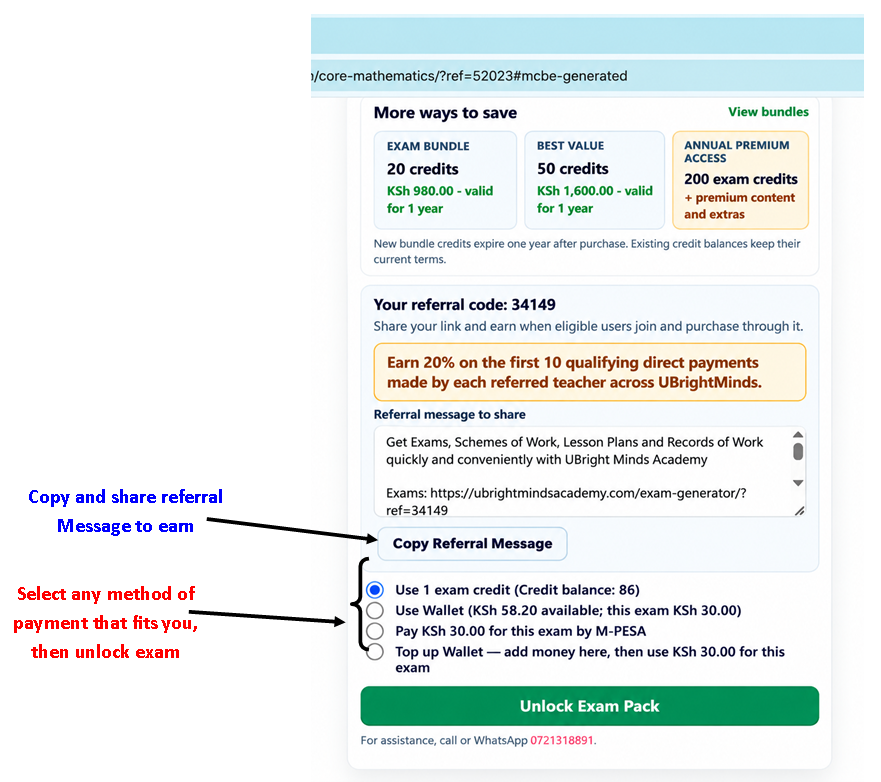
After requesting the final files, the system displays the available methods for unlocking your examination.
Additional Savings and Rewards
The page may also display examination credit bundles, premium access offers and a referral program.
Once you have selected your preferred payment method, click Unlock Exam Pack.
Important: Prices, account balances and promotional offers shown in the screenshot are examples. Refer to the amounts displayed on your account when making a payment.
Download Your Completed Examination
Once the examination pack is unlocked, your Question Paper and Marking Scheme are ready.
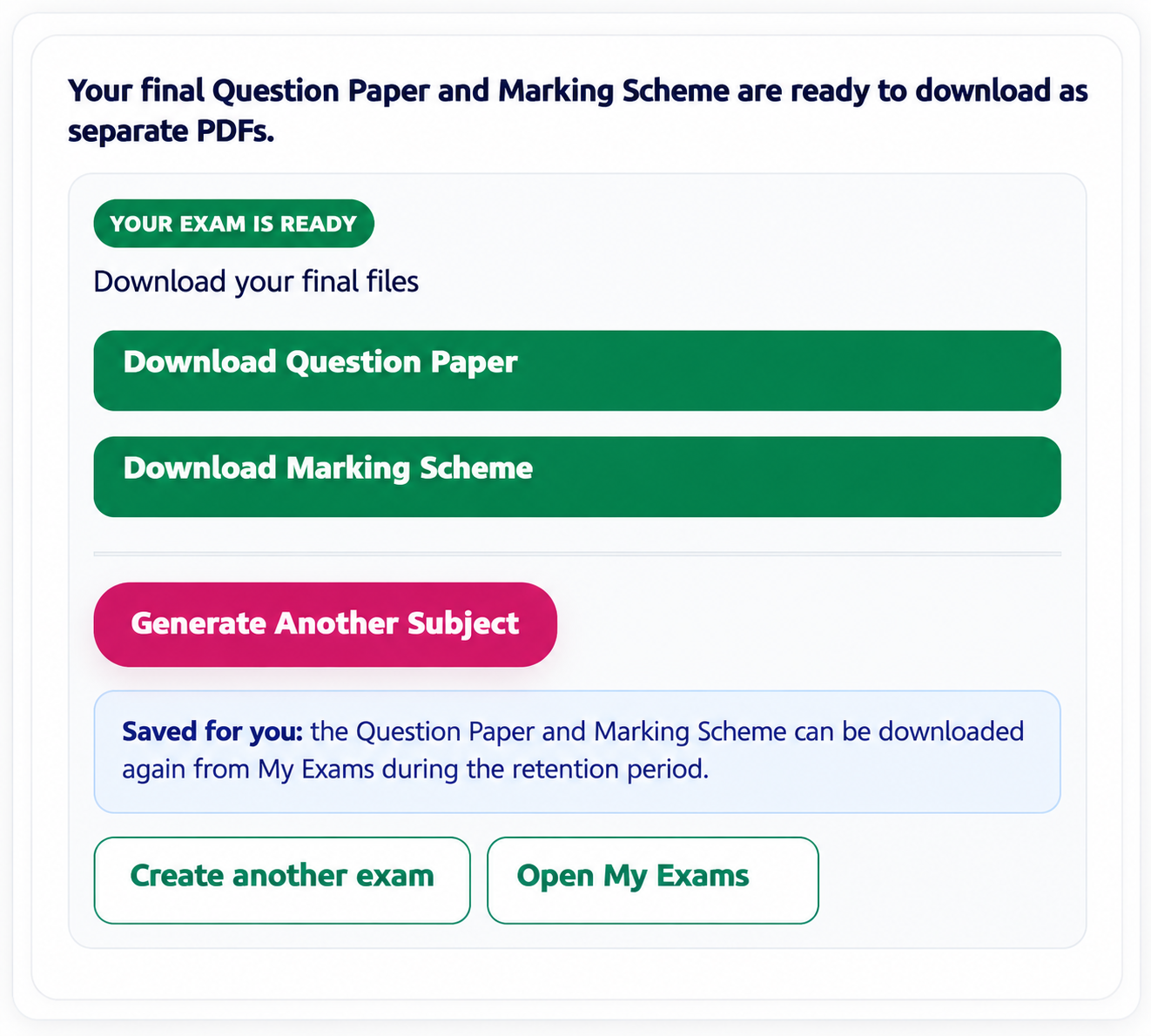
The system displays a confirmation that your examination is ready.
Download Question Paper
Click Download Question Paper to obtain the examination document for learners.
Download Marking Scheme
Click Download Marking Scheme to obtain the corresponding marking guide for teachers and examiners.
What Can You Do Next?
- Generate Another Subject: Prepare an examination for a different subject.
- Create another exam: Begin a new examination.
- Open My Exams: Access examinations saved to your account.
Saved for You: The Question Paper and Marking Scheme can be downloaded again from My Exams during the applicable retention period.
View a Sample Examination
See an example of the examination documents produced by the UBright Minds Academy Exam Generator.
The sample below contains a Grade 10 Core Mathematics Question Paper and its corresponding Marking Scheme.
Select a document to view it directly on this page.
Sample Question Paper
Grade 10 Mathematics — Term 3, 2026 Assessment
Sample Marking Scheme
Grade 10 Mathematics — Term 3, 2026 Assessment
Viewing Information: These documents are displayed within the page for demonstration purposes. PDF viewing controls may vary depending on the visitor’s browser.
Examination Generation at a Glance
The complete examination generation process consists of six main steps.
Ready to begin? Open the UBright Minds Academy Exam Generator, select your subject and follow the steps above to prepare your next examination.